Currently there is no direct way to set a fixed filename for any of the output targets inside the Icetips Previewer, but you can easily do this on the report itself, rather than passing the name to the previewer and do it there. In fact this would probably be the preferred method since the report probably should determine the name and location of the resulting filename.

You need to put code into a single embed where you set the filename:
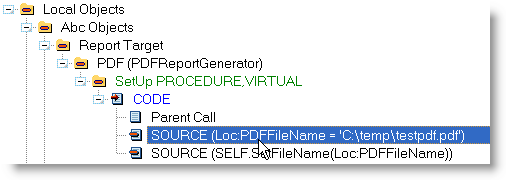
Embed Tree for setting target filename

All the code that you need is just a call to the SELF.SetFileName() method. Please note that each output target has it's own Setup method so if you have multiple output target templates active you will need to do this for all of them. You can pass the filename as a string, variable or an empty string if you want it to open the file dialog in the Previewer when you print to PDF.
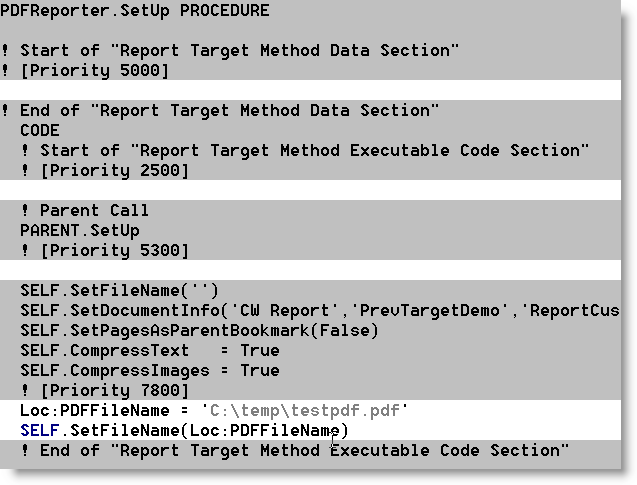
Embed for setting target filename

In this case you can use:

SELF.SetFileName('')  

This triggers the FileDialog to open in Previewer when you click on the PDF button.

SELF.SetFileName('myfile.pdf')

This writes the PDF file as "myfile.pdf" to the current folder.

SELF.SetFileName('C:\temp\myfile.pdf')

This writes the PDF file to specific folder, which is probably not what you want to do!

SELF.SetFileName(LOC:PDFFileName)

In this case a variable is used. You can prime the variable anywhere before the PDFReporter.SetUp method is called, or you can do it right before the SELF.SetFileName. Note that the PDFREporter.Setup method is not actually called until the report is in the Previewer so if you use a Global, Threaded variable, you can set this in the Previewer. Since the previewer and the report will always be on the same thread, you can just set this variable to be threaded and then there are not threading issues to deal with.

Here is an example of how this can be implemented. On the report I have changed the code to:

SELF.SetFileName(Glo:PDFFileName)

The global variable is a CString(2049) global variable with the "THREAD" attribute. To do that simply check the "THREAD" checkbox on the "Attributes" tab when you create the global variable - doesn't make a difference if you do it in the Global Data or in the Dictionary.

In the Previewer, all that is needed now is to set the global variable. Normally I would think that you would want to set the filename on the report, but this gives you an idea how to do it on the Previewer also. I have added an instance of our ITShellClass from the Icetips Utilities to the previewer procedure - in the "Local Data" embed I added:

ITS  ITShellClass

Now in the "Local Objects | Icetips Previewer | Clarion 6 Save Buttons | Before Save Dialog"

Embed Tree for setting target filename

I have added this code:

  If GQ.GName = 'PDF'
    Glo:PDFFileName = ITS.GetSpecialFolder(IT_CSIDL_PERSONAL) &|
                      '\MyPDF.pdf'  
    !! Glo:PDFFileName must be be used in the report's 
    !! PDFREporter.Setup.

    If Not FileDialog('Select PDF to save',|
          Glo:PDFFileName,|
          '*.pdf|*.pdf',|
          FILE:SAVE+FILE:KEEPDIR+FILE:LONGNAME+FILE:ADDEXTENSION)
      Message('No PDF File selected, aborting PDF save',|
              'PDF Saving aborted',ICON:Hand)
      Exit
    End
  End

Note the "GQ.GName = 'PDF'". This allows you to just do the PDF if you want the default filename handling for other options. The GQ contains all the target names, such as "PDF", "HTML" etc. At the top of the routine that handles the targets in the Previewer, the correct item is selected from the GQ queue so throughout the routine you can use GQ.GName to determine what is the active target being printed to.

If you find new ways to use this, I would certainly appreciate if you would be kind enough to add a comment to this article so I and others can benefit:)

Arnor Baldvinsson

Loading

Clarion 7.1 final release has been out for about 3 weeks now and so far no issues have been reported with any of our products in 7.1!

Claron 7.1 is getting pretty close to being a very productive product while there are still a few problems here and there I think that next build will probably take care of a lot of the snags that I have had minor issues with.

In February I will start moving the Build Automator to Clarion 7.1 and will report on how that process goes.

Arnor Baldvinsson

Loading

If you use the Enable Printer Selection extension on your Icetips Previewer to allow users to select a printer, then there is a bug that can cause problems. Fortunately it is very easy to fix it and it has been fixed in our sources for our next release.

The problem comes up if a user selects a page range to print from the PrinterDialog rather than selecting a page range within the previewer. This causes the FromPage and ToPage properties of the printer object to be set but there were two lines of code missing that reset those properties to default.

There are two places that you need to fix:

"Local Objects|Icetips Previewer|Print to Selected Printer|End of Routine"
and
"Local Objects|Icetips Previewer|Print current page to Selected Printer|End of Routine"

In both of those embeds, place the following code and the problem is fixed:

 Printer {PROPPRINT:FromPage} = -1
 Printer {PROPPRINT:ToPage} = -1

This has already been fixed in the next build which will be out later this week. It would be out today if it were not for a problem that we discovered before the weekend with Clarion 7. The cause of it has already been found and I'm currently working on a fix for it:)

Arnor Baldvinsson

Loading

I got an email this morning from a customer who was trying, without any success, to change the text of items in a Drop Combo control in PowerToolbar at runtime. The simplest way would be to simply use:

Toolbar1.SetItemText(MyItem,'My Text')

Unfortunately that only works for drop buttons, not Drop Combos. I figured it would be a simple task to add a method to do this but ran into a brick wall. The brick wall was the APIs used to construct Drop down Combo controls do not have any messages or methods to change the text for a given item! It seems to be set in stone once the item is created. So what can you do? The simple answer is to recreate the Drop Combo items! It is very fast and as far as I can tell it does not cause any flicker.

If you want to restore the text in the entry field, you need a single CSTRING variable to contain the text. Below is the code needed to reset the items in the Drop Combo:

Loc:Str = Toolbar1.GetText(ID1_DropCombo)
Toolbar1.DeleteItems(ID1_DropCombo)
Toolbar1.AddComboItem(ID1_DropCombo, 'NEW Drop combo item 1', )
Toolbar1.AddComboItem(ID1_DropCombo, 'NEW Drop combo item 2', )
Toolbar1.SetText(ID1_DropCombo,Loc:Str)

In this case Loc:Str is a CSTRING(100) variable that is a temporary buffer for the contents of the Drop Combo edit control. The Toolbar1.DeleteItems deletes ALL the items from the list and the next two Toolbar1.AddComboItem lines add two new items to the list. The Toolbar1.SetText resets the text in the edit control and you are back where you started except you now have updated items in your list.

Arnor Baldvinsson

Loading

A customer contacted me and sent me some screenshots of a menu themed with PowerToolbar that had several menu items missing from the last menu on the menubar. It was obvious that something was not working correctly so I asked him to export the appframe to TXA and email it to me. After duplicating this problem yesterday I spent couple of hours today investigating what was going on. Here is a screenshot of the menu:

Missing menu items

Something was obviously wrong and my initial investigation wasn't promising. The API calls that get the information about each menu item simply weren't returning the text for the menu items! My suspicion was directed to a big menu with several levels of submenus as a possible culprit because it was the menu next before the trouble menu. So I cut it out of the source and lo and behold the Help menu worked again! I painstakingly copied the items and menus back into the menu until the Help menu failed and I had found the culprit.

One of the MENU statement had the HIDE attribute on it, and something about that set the menu item organization completely off and plunged the next menu into a deep hole! The fix was very simple, just remove the HIDE attribute from the MENU and add a one line of code into ThisWindow.Init to hide the menu.

 ?ReportsAddressBook2 {PROP:Hide} = TRUE

That's all there was to fix this problem. The menu now looks like it should:

Missing menu items fixed

This customer had also noticed another problem which was that the hotkey text on a menu item would disappear if the menu had a submenu and the submenu had been displayed. After some digging around I also found the culprit for that problem. When the submenu opened and closed the hotkeys for the items in the parent menu weren't reloaded so the width of each item was set to 0. This caused the hotkey text to be effectively drawn to the right of the menu. This is now fixed in build 2.0.118 which will be made available to the public after the weekend:)

Arnor Baldvinsson

Loading

One of my customers contacted me couple of days ago to ask if it was possible to sort items in a drop button, when the items are created at runtime. Since the items are stored in a queue I figured it would be fairly easy.

 Toolbar1.DeleteItems(ID1_Name)

 Toolbar1.AddDropItem(ID1_Name,'Arnor','ok_16.ico',1)
 Toolbar1.AddDropItem(ID1_Name,'Robert','ok_16.ico',2)
 Toolbar1.AddDropItem(ID1_Name,'Monica','ok_16.ico',3)
 Toolbar1.AddDropItem(ID1_Name,'Ana Maria','ok_16.ico',4)
 Toolbar1.AddDropItem(ID1_Name,'Ivan','ok_16.ico',5)

 Sort(Toolbar1.BandQ.ControlQ.pDropButton.ItemQ,|
      Toolbar1.BandQ.ControlQ.pDropButton.ItemQ.szTxt)
 !! Reset the ItemIDs after sorting the queue.
 Loop I# = 1 To Records(Toolbar1.BandQ.ControlQ.pDropButton.ItemQ)
   Get(Toolbar1.BandQ.ControlQ.pDropButton.ItemQ,I#)
   Toolbar1.BandQ.ControlQ.pDropButton.ItemQ.ItemID = I#
   Put(Toolbar1.BandQ.ControlQ.pDropButton.ItemQ)
 End
 Display()

Note that this will not work properly if you have separators in the drop items. If you want to do that, I would suggest to add the item text entries to a queue and sort them before you add them to the drop button. Something like this might work:

AddDropButtonItems         ROUTINE
 Data
Q   Queue
T     CString(256) !! Item text
SF    Byte         !! Separator Follows
    End
 Code
 Q.T = 'Arnor' ;     Q.SF = False; Add(Q)
 Q.T = 'Robert' ;    Q.SF = True;  Add(Q)
 Q.T = 'Monica' ;    Q.SF = False; Add(Q)
 Q.T = 'Ana Maria' ; Q.SF = False; Add(Q)
 Q.T = 'Ivan' ;      Q.SF = False; Add(Q)
 Sort(Q,Q.T)
 Toolbar1.DeleteItems(ID1_Name)
 Loop X# = 1 To Records(Q)
   Get(Q,X#)
   Toolbar1.AddDropItem(ID1_Name,Q.T,'ok_16.ico',1)
   If Q.SF = True !! Add Separator
     Toolbar1.AddDropItem(ID1_Name,'-','ok_16.ico',1)
   End
 End

 Display()

This should be able to handle sorted list with separators. I'm planning to add a method to sort the items alphabetically and I think I can make it handle the separators correctly too. The method I describe here is a bit more flexible as it gives you full control over how the items are arranged.

Arnor Baldvinsson

Loading

On some of the XP-Theme product download pages it was stated that XP-Theme works with Clarion 5.5. This is not correct. When the source was moved up to Clarion 6.0 by PowerOffice there were quite a few modifications made to the code to make it thread safe in the new Clarion 6 threading model. Unfortunately this also made the code incompatible with Clarion 5.5.

Since it is seven and a half years since the last Clarion 5.5 build was released (May 29, 2002 according to my zip files) I will not be attempting to port the current product back to 5.5 compatibility.

I have updated the website and download information to reflect this and hopefully I found all the places it was mentioned. If you see somewhere that XP-Theme is compatible with Clarion 5.5, I would appreciate it if you would please let me know:)

Arnor Baldvinsson

Loading

One of my customer asked how he could hide and unhide a band on a PowerToolbar on the application frame from a PowerToolbar button on his MDI window.

In order to do this you need to set up the MDI client template on the MDI window. PowerToolbar uses a global instance of the POToolbarGlobalClass to control the appframe toolbar from other threads. You can take a look at some of the methods in the online documentation.

The code you need to toggle the visibility of a band looks like this:

If AppToolbar.GetBandVisible(TB1_TestWindowBand) = True
    AppToolbar.SetBandVisible(TB1_TestWindowBand, False)
Else
    AppToolbar.SetBandVisible(TB1_TestWindowBand, True)
End

That is pretty much all there is to it. This is exactly the same code as you would use on the appframe itself.

Arnor Baldvinsson

Loading

You may find that you need to dynamically change the text in a header or item. This is a bit tricky in the currently public release, but is made much simpler in the next release.

In the current release, 2.0.111, you need to add a few lines of code to make this work. First of all you need to declare a group in your procedure data embed:

TskI GROUP(POB:TaskInfo)
     End

This declares a group that you then need modify.

 TskI = Outlookbar1.GetTaskInfo(OutlookBar1.Outlookpanel,0)
 TskI.Title = 'Changed Outlookbar Title'
 Outlookbar1.SetTaskInfo(OutlookBar1.Outlookpanel,|
                         0,|
                         TskI)

The first line loads the local group, TaskInfo, with the data from the header or item. The second line sets the title in the group and the third line updates the the header or item. Since this is rather awkward we decided to simplify this down to:

OutlookBar1.SetTitle(OutlookBar1.Outlookpanel,|
                     0,|
                     'Changed Outlookbar Title')

To download version 2.0.112, which includes the new SetTitle method, please go to Download Icetips Outlookbar 2.0.112

Arnor Baldvinsson

Loading

Sometimes it is necessary to update and refresh controls on the toolbar. In order to do so you need to know the control IDs. You can find those in the templates (see the "ID" field in these screenshots) or you can open the source for the procedure in the embeditor (right click on procedure and select "Source" from the popup menu) and locate declaration of the toolbar class (search for "POToolbarClass"). The IDs will be declared rigth above it and the control IDs start in a number range of 10,000.

Here is an example on how to update couple of entry fields and a checkbox button:

 loc:query     = SEA:Terms
 MinAsk        = SEA:MinAsk
 MaxAsk        = SEA:MaxAsk
 Toolbar30.SetText    (ID30_SearchEntry, loc:Query)
 Toolbar30.SetText    (ID30_MnPrice,     MinAsk)
 Toolbar30.SetText    (ID30_MxPrice,     MaxAsk)
 Toolbar30.SetChecked (ID30_Haspic,      Sea:HasImage)
 Toolbar30.Refresh(True)

Note that in order to make sure that everything is updated correctly you need to use Refresh(True) rather than just Refresh()

Arnor Baldvinsson

Loading