Code Template: Create Link


|
Code Template: Create Link |
|
This code template is used to create the Send To link. The Send To link is a link file (file with .lnk extension) that is created in the Send To folder (CSIDL_SEND_TO or FOLDERID_SendTo). The link file name is the name that appears in the Explorer Send To menu. This code would normally go into your normal application, which may be the target for the Send To link as well, perhaps on a button. Note that
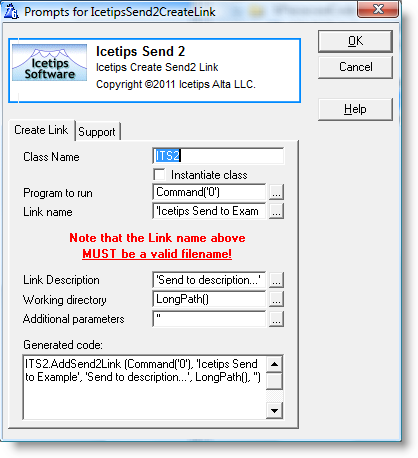
Class Name
Name used for the class instance. It defaults to ITS2.
Instantiate Class
Check this if you want the template to create an instance of the class, i.e.
ITS2 ITSend2Class
If you get compiler errors or compiler warnings, check this first to make sure that it is checked or unchecked when appropriate. Defaults to checked.
Program to run
The program to run when the Send To link is activated in Windows Explorer. Normally the code generated by the template would be executed from the program that should be used, so the default value is Command('0') which is the full path to the current program. If you run this from a program that is not the destination program, you need to provide full path to the program to run. Click the [...] button to select a variable.
Link name
Name of the link file to be created. This must be a valid filename without path and without extension. The name should be in single quotes. Use the [...] button to select a variable.
Link Description
This description is only used in the properties window for the link. It is NOT used in the Send To menu. The description should be in single quotes.
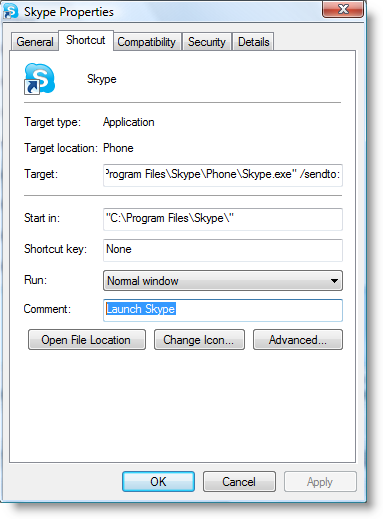
In the screenshot above from Skype, the "Link description" would be "Launch Skype" and appears in the Comment field in the link file properties window.
Working directory
This is the path for the working directory of the program being linked. This translates into the "Start in" folder in the screenshot above. The working directory should be in single quotes if it is specified as a string literal.
Additional parameters
This is only applicable if the program being called needs to check for additional parameters. Normally you should not use additional parameters along with the file list as it can cause problems with the file parsing. If parameters are specified they must be in single quotes.
Generated code
This textbox shows you exactly what code is being generated into the application. Makes it easy to see exactly what is going on.