Simple Browse tutorial


|
Simple Browse tutorial |
|
In this tutorial you will learn how to use PowerToolbar to easily control your browses. This tutorial explains how to use a toolbar to control a browse in the same window. For advanced control across multiple threads, see the Advanced Browse tutorial.
The example below will set up a window with a browse and a toolbar to update it. You can find the finished application at: Clarion6\3rdParty\Examples\PowerToolbar\BrowseTutorial.app
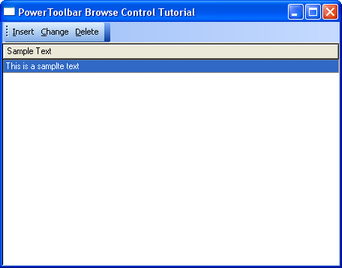
In this example you should use the dictionary named ptbexamples.dct
Simple Browse control tutorial |
 Create a new application (ABC)
 Choose the ptbexample.dct from Clarion6\3rdParty\Examples\PowerToolbar as "Dictionary File".
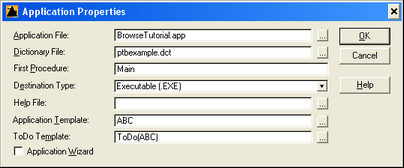
Add the global PowerToolbar template
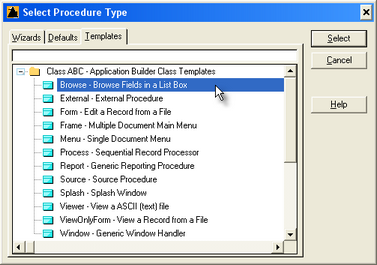
Double click the "Main (Todo)"-procedure and choose "Browse - Browse Fields in a List Box" as template type
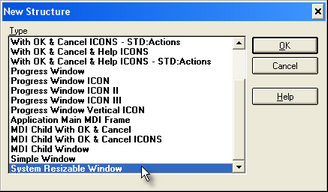
Click the "Window" button and select "System Resizable Window" as window type.
You should now be in the window formatter.
Click the "Control template" button ( )
)
Choose the "Browse Box - File-Browsing List Box"-template
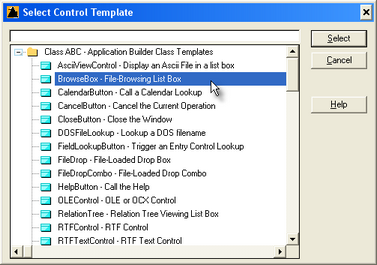
Place it somewhere in your window
Choose the "Sample Table" as table, and "SAM:SampleText" as display field.
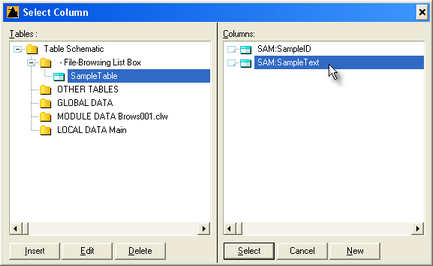
Click "Ok" in the list box formatter
Now you should add browse update buttons
Click the "Control template" button ()
Choose the "BrowseUpdateButtons - Update records from a Browse Box"-template
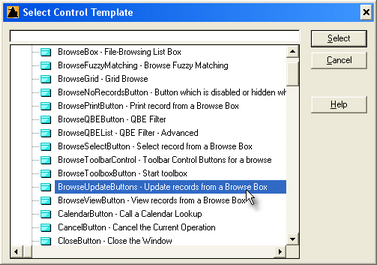
Position the buttons over the browse box
Set buttons to "Hide"
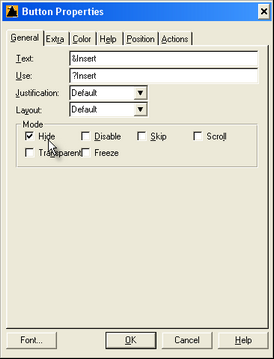
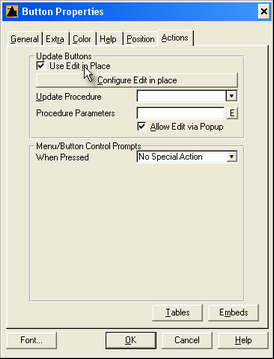
On one of the button's action-tab, check the "Use Edit in-Place" option
Add PowerToolbar to your window
Click the "Control template" button ()
Choose the "POToolbarControl - Toolbar Control"-template

Position at the top of your window
Right-click the toolbar control, and choose "Position"
Set Width to "Full"
Add toolbar band
Right-click the toolbar control, and choose "Actions"
Click the "Insert" button to add a band
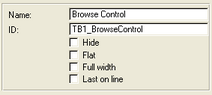
Enter "Browse Control" as band name
Add toolbar buttons
Click the "Insert" button to add a button
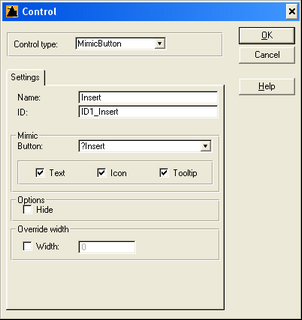
Choose "MimicButton" as "Control type"
Enter "Insert" as "Name"
In the "Mimic Button"-dropdown, choose the "?Insert"-button
Click "Ok"
Now, repeat this step for the ?Change and ?Delete button
Save and compile your application
After starting your application, you can click the "insert" button to add a new record.
In this tutorial we used "Edit in-Place", but this method works just as well if you use an update form instead.